Invite codes
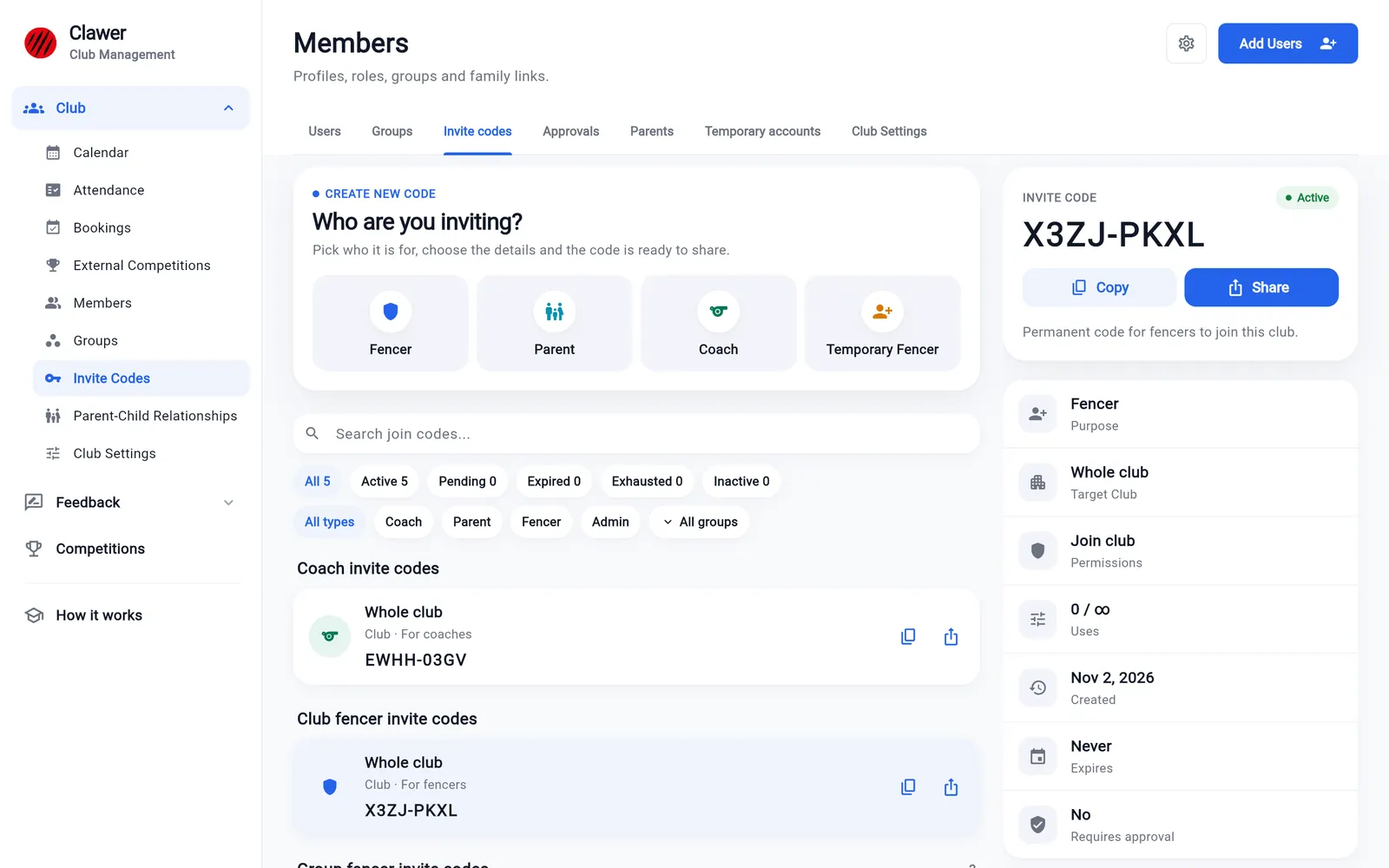
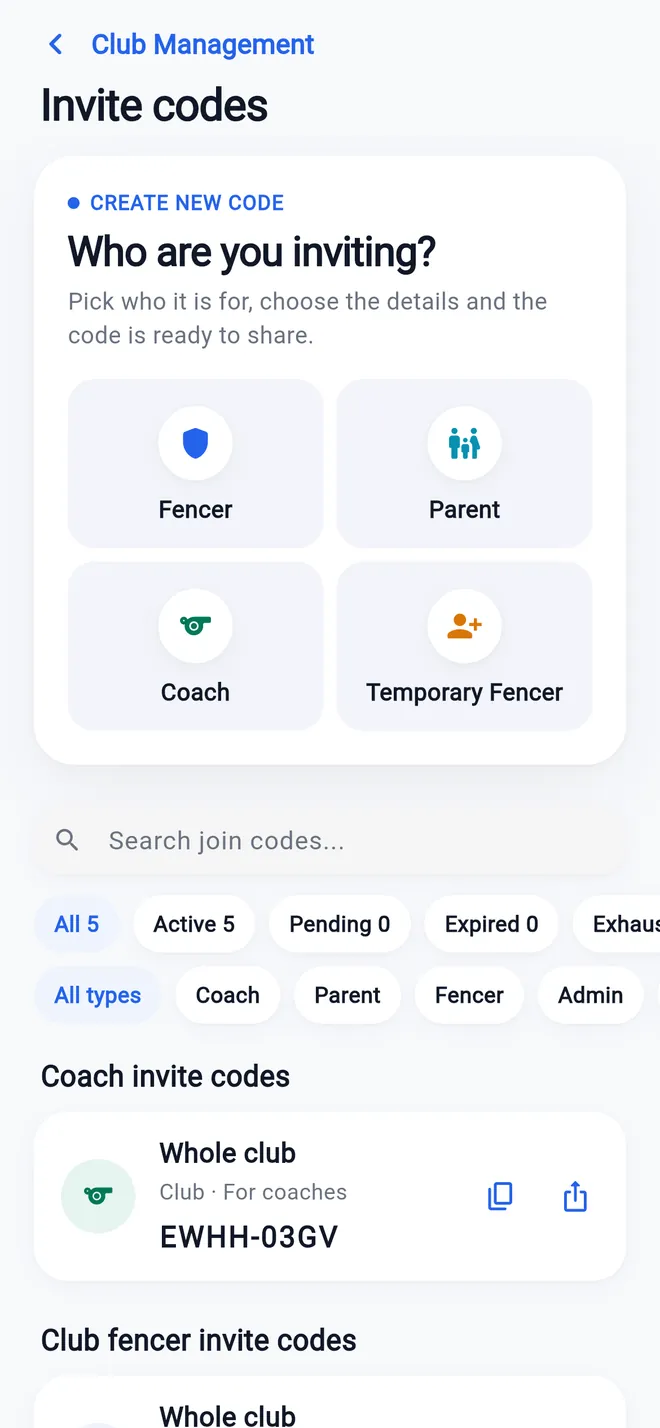
Pick who you are inviting and the code is ready to share. Fencers land in their group, parents are linked to their child, coaches get the right rights.


How it works
Fencer, parent, coach or temporary fencer.
person_addAdminWhole club or one group, rights, number of uses, expiry and approval.
tuneAdminCopy it or share it from the app.
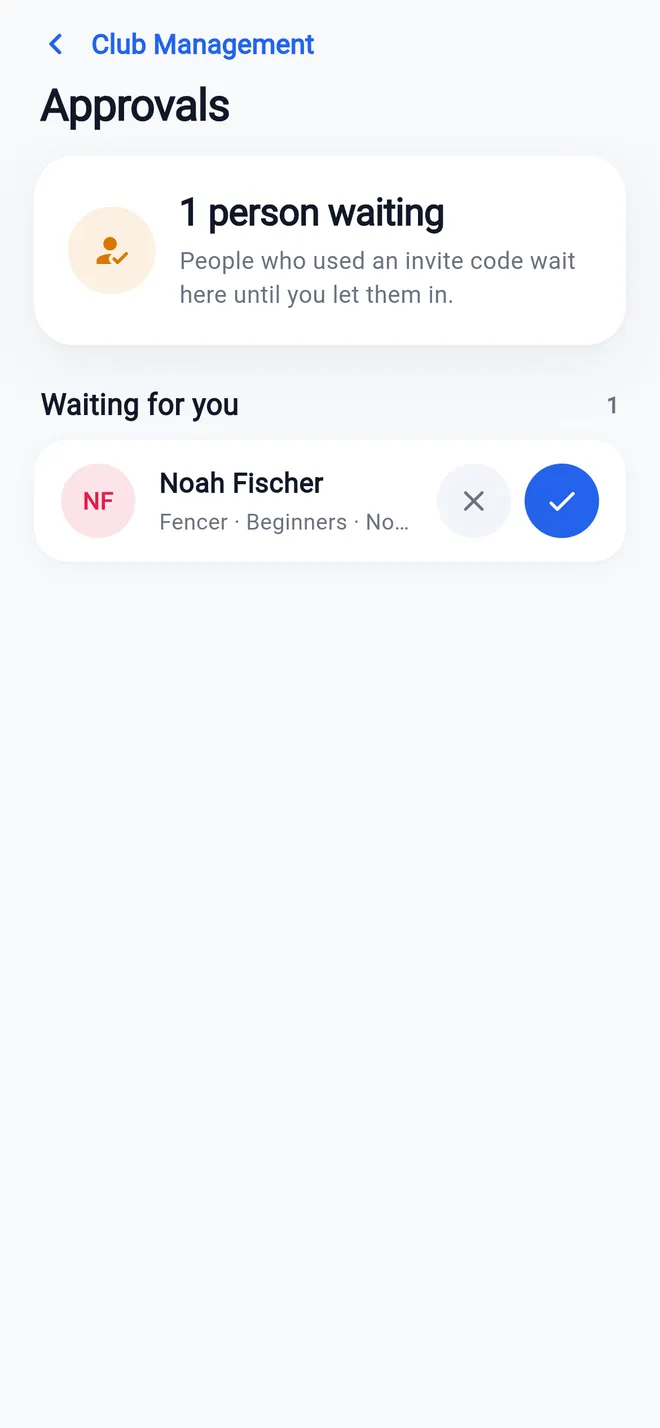
shareAdminIf the code needs approval, new members wait in Approvals.
how_to_regAdminOr a temporary fencer without an email.
Fencers join straight into their group.
See active, pending, expired and used-up codes at a glance.
Computer and phone
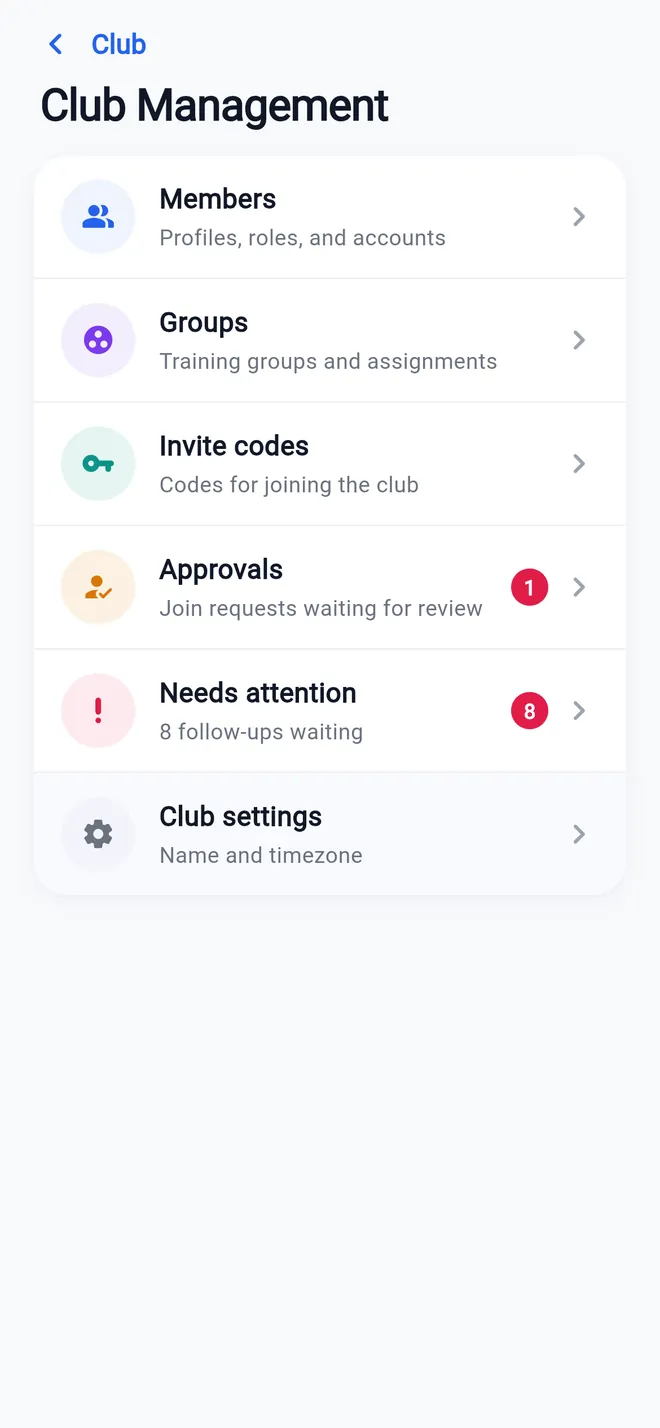
The same club, on a computer at the desk and on the phone at the piste.
FAQ
Yes. Set a maximum number of uses and an expiry date, or leave it open.
Yes. Codes can require approval. People who used the code wait in Approvals until you let them in.
Yes. A fencer code can target one group, so fencers join straight into it.
Get the app
Free to download on iPhone, iPad and Android.
 Clawer